

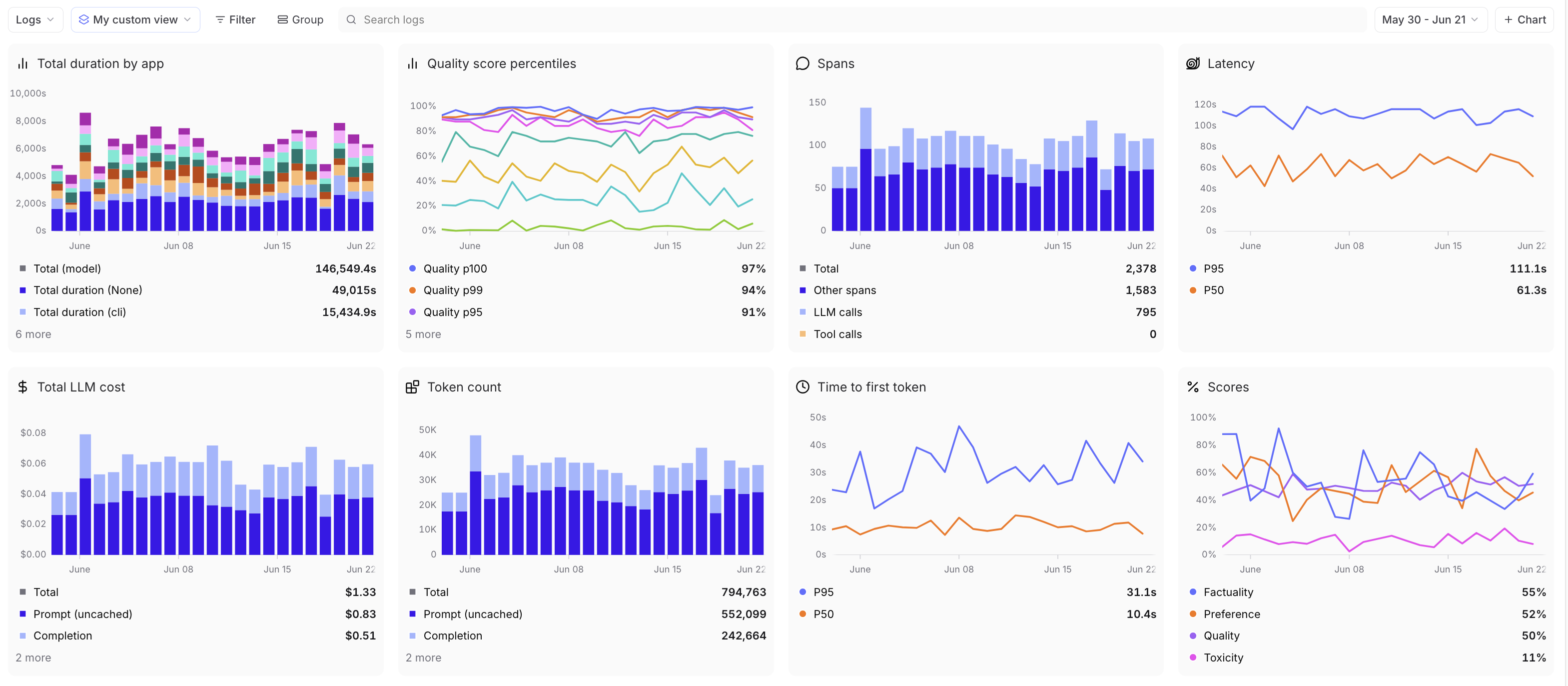
Filter and group data
Apply filters and groupings at the top of the page to affect all charts. This lets you focus on specific subsets of your data or compare different segments side by side. Filters apply to entire traces with any span match, while groups are only per span.
Create custom charts
Select + Chart to open the chart editor, or select the icon on any chart to customize it. The editor exposes the following options:- Chart type: Determines the visualization and which other options are available:
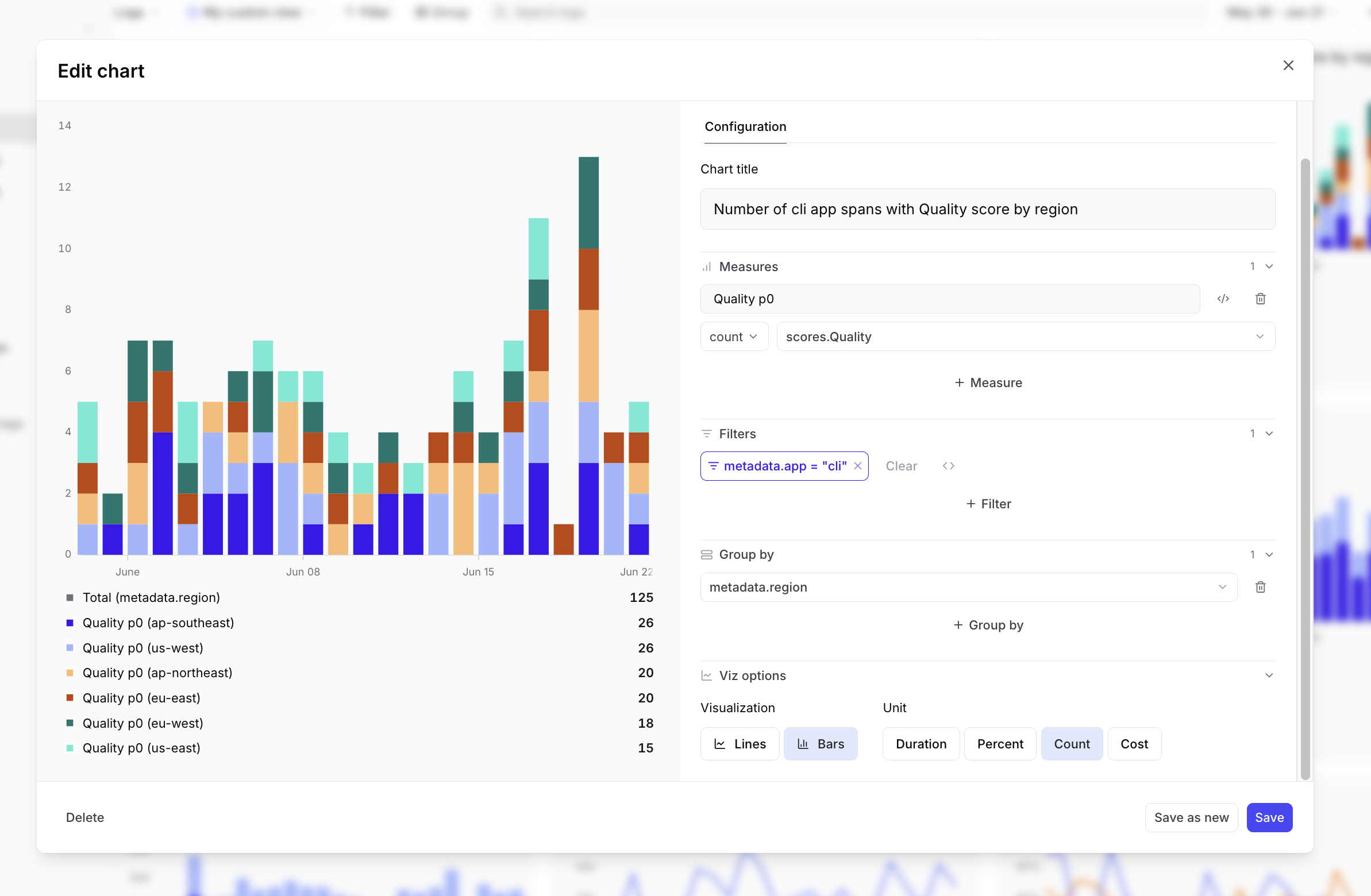
- Time series: Plot metrics over time as lines or stacked bars.
- Top list: Rank groups by a metric over the selected timeframe.
- Big number: Display a single aggregate value prominently.
- Presets: Start from a built-in chart covering common metrics like request count, latency, token usage, and scores.
- Title: A label displayed above the chart.
- Measures: What to plot. Each measure is a SQL expression paired with an aggregator (sum, avg, min, max, count, count distinct, or percentile). Built-in measure types are also available for aggregate scores and cost.
- Trace filters: Narrow results to traces where any span satisfies the filter conditions. Useful for filtering by root-span metadata (e.g.
metadata.email). - Span filters: Narrows results to individual spans that satisfy the filter conditions. Only matching spans contribute to the measure.
- Group by: Splits the chart into separate series by a SQL dimension (e.g.
metadata.model). Available for time series and top list charts. - Options: Controls visualization-specific settings:
- Unit type: Choose how values appear in chart axes, tooltips, and legengs:
- Duration: Seconds (e.g., “1.5s”, “0.3s”)
- Cost: US dollars (e.g., “1.23”)
- Count: Generic countable things (e.g., “1,234”, “5.5”)
- Percent: Percentages (e.g., “75%”, “100%”)
- Bytes: Binary byte units using base-1024 (e.g., “1 KB”, “2 GB”, “500 B”)
- Visualization: Visualize as lines or bars. Available for time series charts only.
- Sort: Sort by value or name, ascending or descending. Available for top list charts only.
- Unit type: Choose how values appear in chart axes, tooltips, and legengs:
only available on Pro and Enterprise plans.
Time series
Visualize data over time with lines or stacked bars. Time series charts help you spot trends, anomalies, and correlations.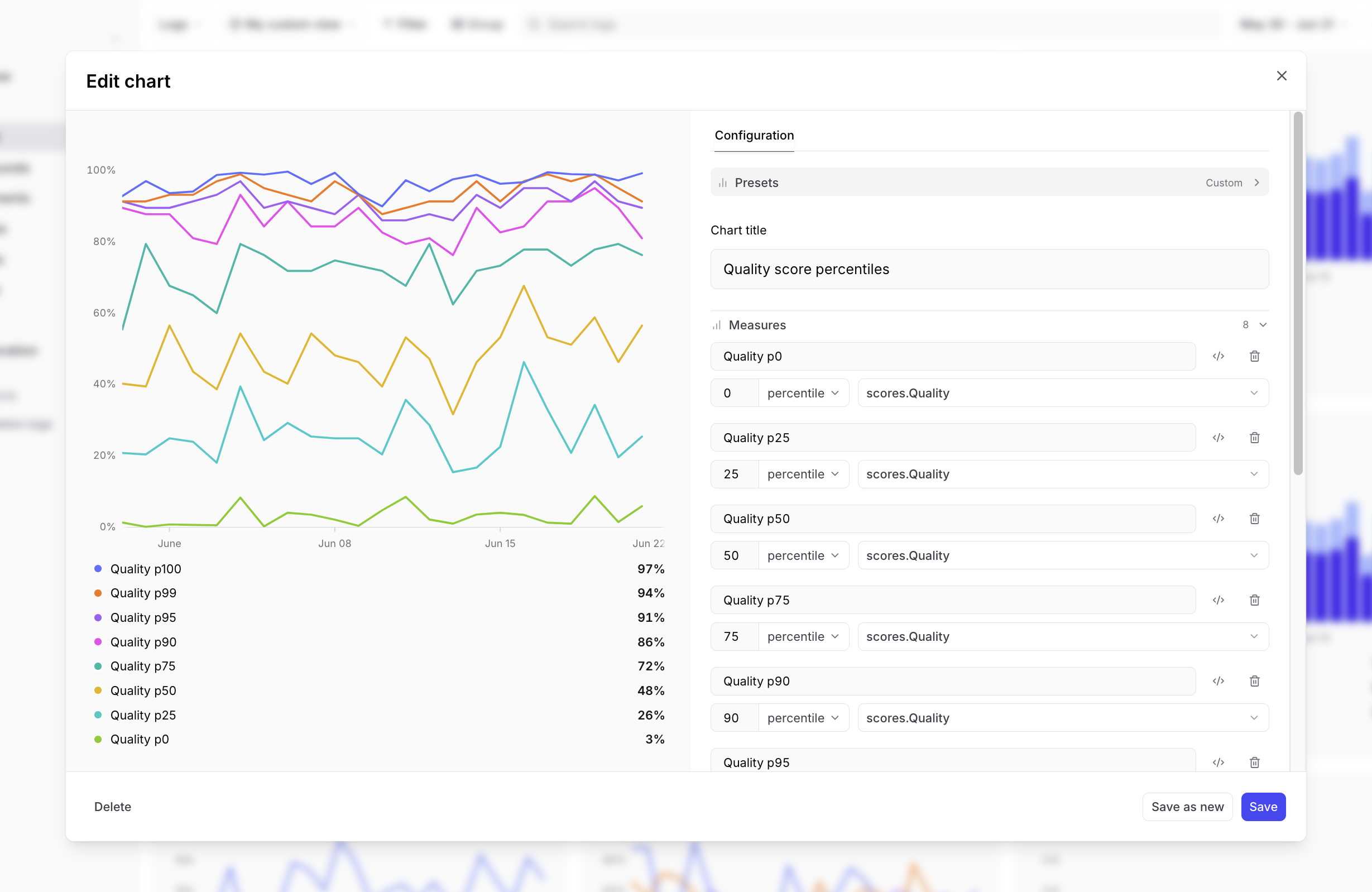
Top list
Show values of multiple groups over the entire timeframe. Order by value or alphabetically (ascending or descending).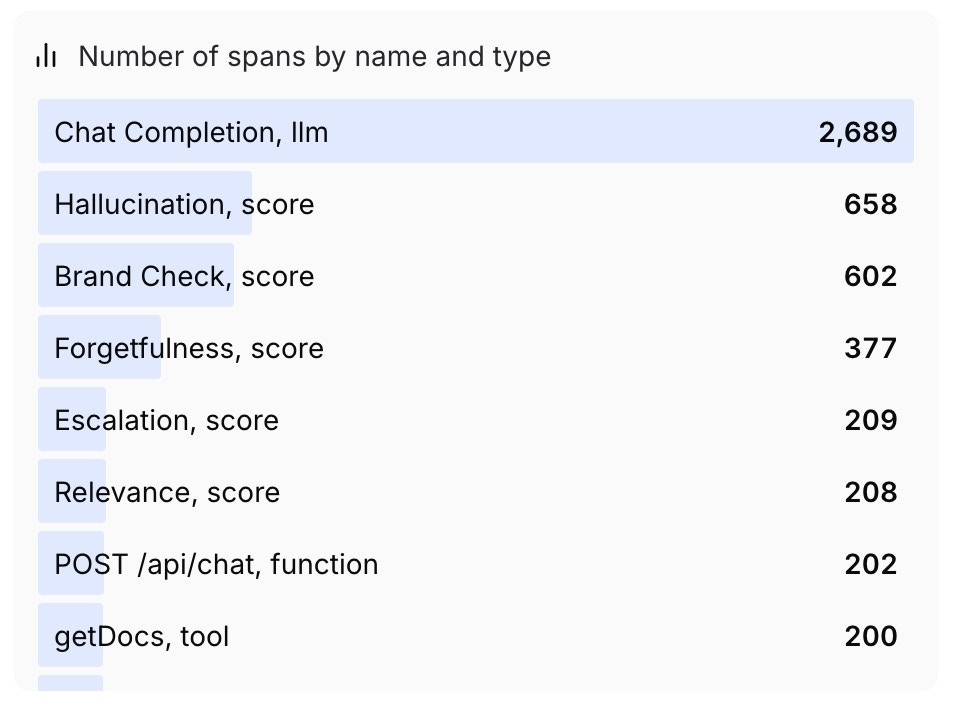
Big number
Display a single aggregate value as one large number. Useful for highlighting key metrics like total requests or average score.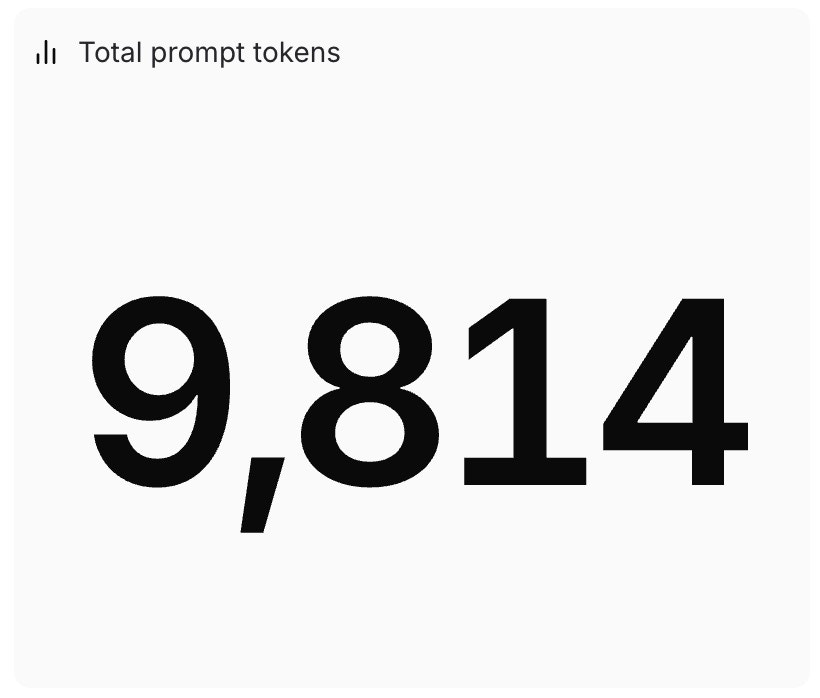
Presets
Preset charts are included by default on the Monitor page, covering common metrics like request count, latency, token usage, and scores.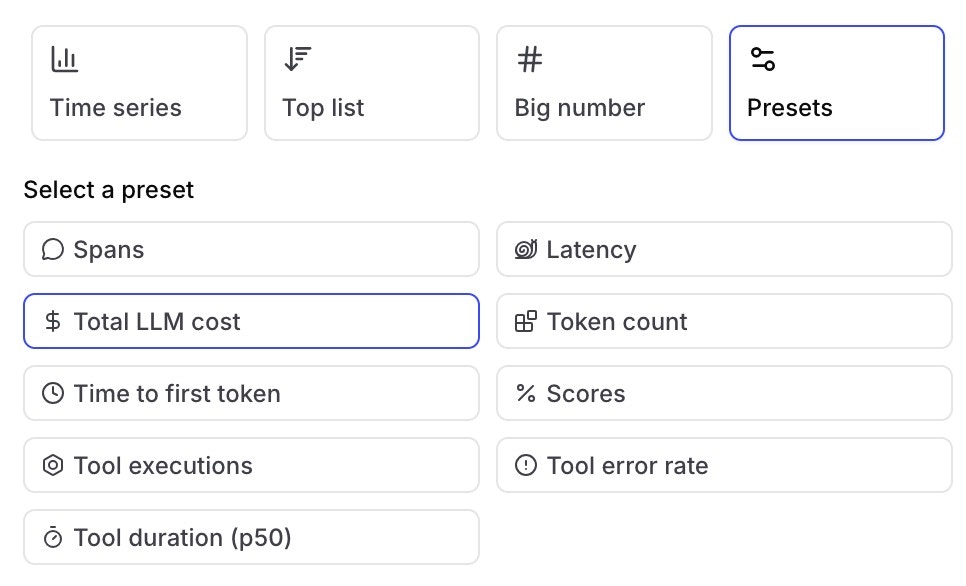
Some preset charts (Spans, Latency, Total LLM cost, Token count, and Time to first token) automatically exclude internal scorer spans generated by online scoring automations such as Topics and online scorers. This ensures the metrics reflect actual production traffic rather than scoring overhead. Custom charts include all spans by default — add a
span_attributes.purpose is null or span_attributes.purpose != 'scorer' filter to replicate the same behavior.Select timeframes
Choose from preset timeframes or click and drag horizontally on time series charts to zoom into a specific period. Double-click to zoom out.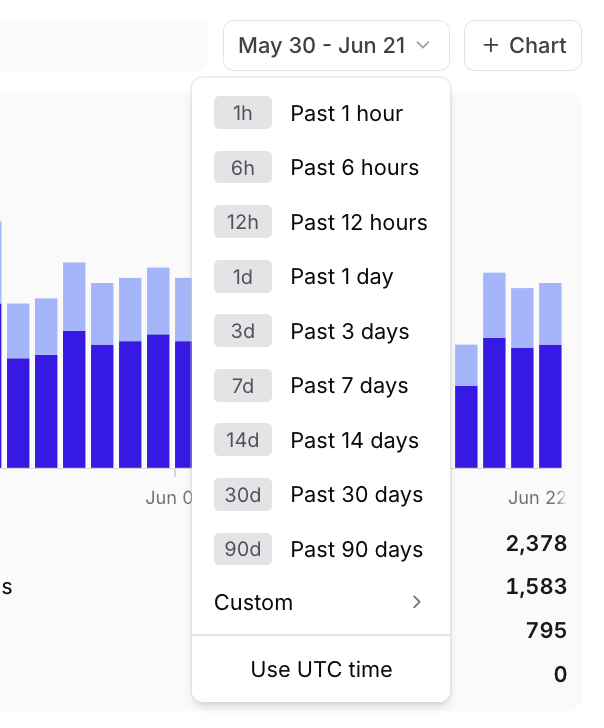
View traces
Select any data point on a chart to navigate to the logs or experiments page, filtered to the corresponding time range and series. This lets you quickly investigate specific data points.Create custom dashboards
The built-in “All data” view shows all data for your project. To create a custom dashboard, you can either:- Edit a chart on the built-in view: When you add or edit a chart on the “All data” view, the editor will prompt you to name and save a new dashboard before your changes are applied.
- Duplicate the current view: Use the menu in the top left to duplicate the current view and save it as a new dashboard.
Creating and editing custom dashboards requires the Projects > Update permission in your organization’s permission groups. Project-level permissions are not sufficient because dashboards are scoped to the organization, not individual projects.
Set default dashboards
You can set default dashboards at two levels:- Organization default: Visible to all members when they open the Monitor page. To set an organization default, you need the Manage settings organization permission (included by default in the Owner role). See Access control for details.
- Personal default: Overrides the organization default for you only. Personal defaults are stored in your browser, so they do not carry over across devices or browsers.
- Switch to the dashboard you want by selecting it from the menu in the top left.
- Open the menu again and hover over the currently selected dashboard to reveal its submenu.
- Choose Set as personal default view or Set as organization default view.
- Open the menu and hover over the currently selected dashboard to reveal its submenu.
- Choose Clear personal default view or Clear organization default view.
Next steps
- Use the Loop to ask questions about your data
- Score online to add quality metrics to dashboards
- Build datasets from patterns you identify
- Read the SQL reference for advanced queries