Custom trace views transform complex traces into interfaces anyone on your team can use. Describe what you want in natural language and Loop generates an interactive React component you can customize or embed anywhere.
Build custom annotation interfaces for large-scale human review tasks, surfacing only relevant information for annotators and subject matter experts.
Simplifying traces for non-engineers
Replace JSON with intuitive UI components like carousels, playlists, or structured summaries to make traces accessible to PMs, legal reviewers, and domain experts.
Industry-specific visualizations
Create views that mirror your product experience:
Playlist-style views for music applications
Interactive source-and-answer layouts
Custom dashboards for internal evaluations
Multi-turn conversation analysis
Aggregate and display data across conversation turns to analyze dialogue flow and long-running interactions.
Select a trace in your logs, experiments, or during human review.
Select Views.
Describe how you want to view your trace data.
After Loop generates your view, refine the view by describing additional changes or edit the React component code directly.Example prompts:
“Create a view that renders a list of all tools available in this trace and their outputs”
“Build an interface to review each trace one by one with easy switching between traces”
“Create a conversation-style view that highlights user messages and assistant responses”
“Render the video url from the trace’s metadata field and show simple thumbs up/down buttons”
Self-hosted deployments: If you restrict outbound access, allowlist https://www.braintrustsandbox.dev to enable custom views. This domain hosts the sandboxed iframe that securely renders custom view code.
By default, a custom trace view is only visible and editable by the user who created it. To share your view with all users in the project:
Select Save in the view editor.
Choose Save as new view version.
Select Update to make it available project-wide.
All team members can then use the shared view when reviewing traces. Custom views integrate with Braintrust workflows — use them during human review, write annotations that flow into datasets, and combine with Loop for analysis.
Custom trace views are React components that run inside Braintrust. You can edit the component code directly to customize behavior beyond what Loop generates.To edit the React code:
Go to the custom trace view.
Select in the lower left of the view.
Select Edit.
Your React component receives the following props:
Prop
Type
Description
trace
object
Contains all spans and methods for the trace. Attachment URLs in span data are automatically signed for rendering.
span
object
The currently selected span with full data
update
function
Update span metadata: update('field', value)
selectSpan
function
Navigate to a different span: selectSpan(spanId)
The trace object includes:
rootSpanId, selectedSpanId - Current span context
spanOrder - All span IDs in execution order
spans - Map of span_id → span (IDs/relationships only)
Custom views support interactive elements that write data back to traces. Add buttons, inputs, or custom controls to collect:
Human review scores
Thumbs up/down feedback
Custom metadata fields
Annotation notes
Use the update function to write metadata back to the trace. This enables annotation workflows where review and data collection happen in the same interface.
By default, only the selected span has full data (input, output, expected, metadata). To access data from other spans, use fetchSpanFields:
// Fetch all fields for one spanconst data = await trace.fetchSpanFields(spanId);// Fetch specific fields for multiple spansconst data = await trace.fetchSpanFields(trace.spanOrder, ['input', 'output']);
Attachments (images, videos, audio, and other binary data) logged in your traces can be displayed directly in custom views. When span data is fetched, Braintrust automatically converts attachment references to inline_attachment objects with pre-signed URLs ready for rendering.Attachments in span data are automatically transformed into objects with this structure:
{ type: "inline_attachment", src: "https://signed-url...", // Pre-signed URL ready to use content_type: "image/jpeg", // MIME type filename: "example.jpg", // Optional filename data?: string // Pre-fetched text content (JSON, text, CSV, XML, Markdown attachments)}
The type field identifies the object as an attachment, src contains a pre-signed URL that works directly in image, video, or audio tags, and content_type indicates the media type.For text-based attachment references (JSON, plain text, CSV, XML, and Markdown) that Braintrust signs on the viewer’s behalf, Braintrust pre-fetches the content and populates the data field with the text string. Structured inline_attachment objects you log directly with an http or data: URL in src are passed through unchanged and will not have data populated. When data is present, render it directly instead of loading from src.
Size limits apply to pre-fetching: 1MB per individual attachment and 5MB in aggregate across the entire payload being processed. The initial custom view load signs the full {trace, span} object (which includes all spans in the trace), and each fetchSpanFields call signs all spans in that response together. Once the 5MB aggregate is reached within a single payload, remaining text attachments will have data omitted even if each individual attachment is under 1MB. The content is still accessible via src in all cases.
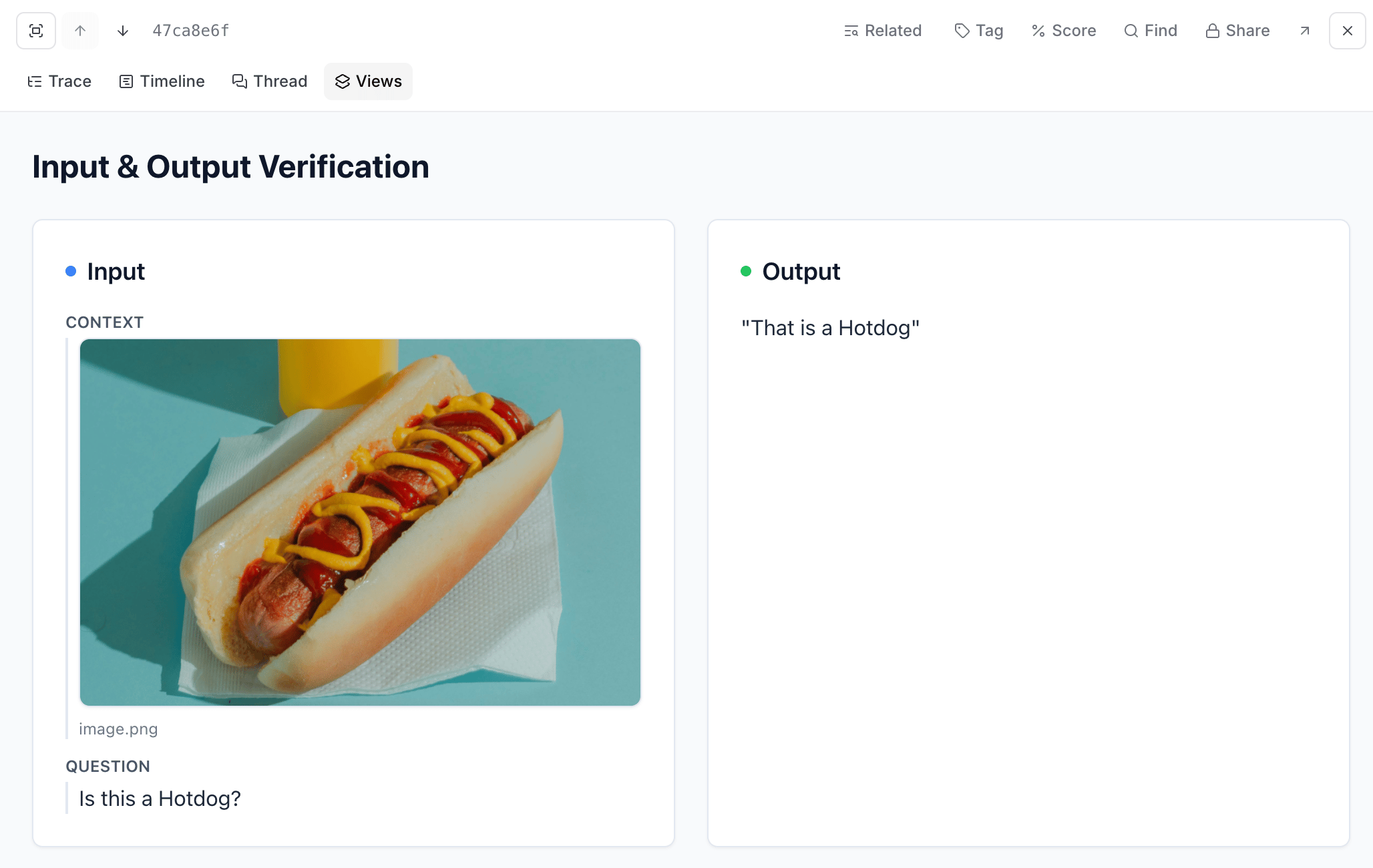
For example, the following code creates an input/output verification view that automatically detects and renders attachments alongside regular data:
Custom view PDF limitation: PDF files referenced as ExternalAttachment objects cannot be rendered in custom views due to browser-level security restrictions in the sandboxed iframe environment. While images and videos work correctly, browsers block PDF rendering in this context.To display PDFs in custom views, upload them as standard Attachment objects or host them externally and link to them instead of attempting inline rendering.
Duplicate custom views to reuse them across different projects or organizations. This lets you create a view once and apply the same interface to traces in multiple projects without rebuilding from scratch.To duplicate a custom view:
Open the custom view you want to duplicate.
Select in the lower left of the view.
Select Duplicate.
Give the new view a name.
Choose the target organization and project.
Select Duplicate to create a copy in the selected project.
The duplicated view includes all React component code and configuration, creating an independent copy you can modify without affecting the original.